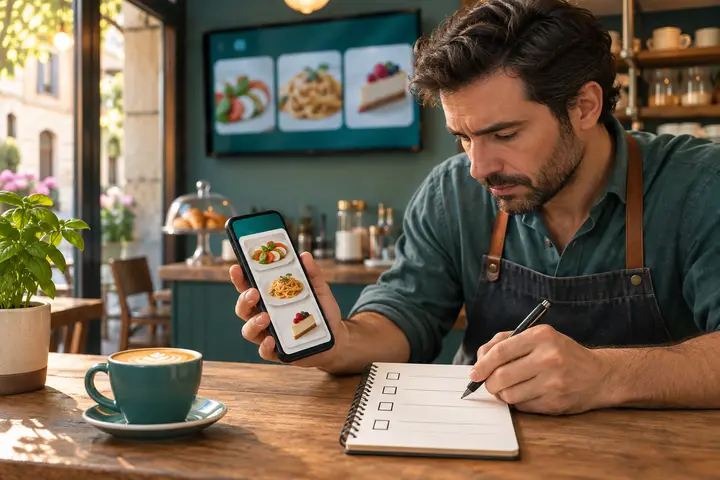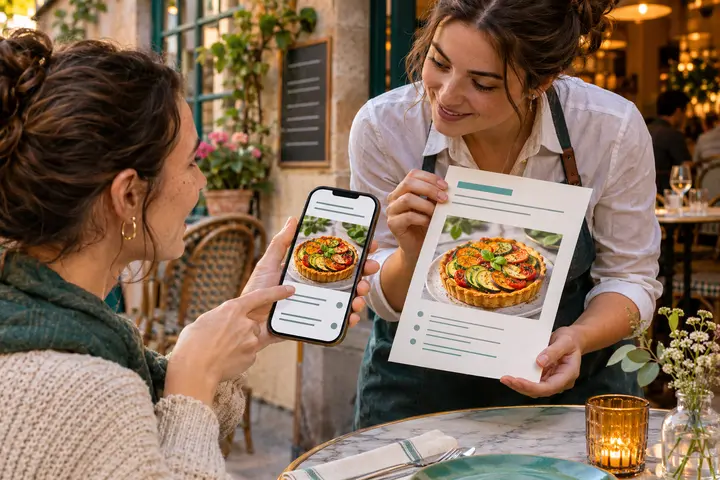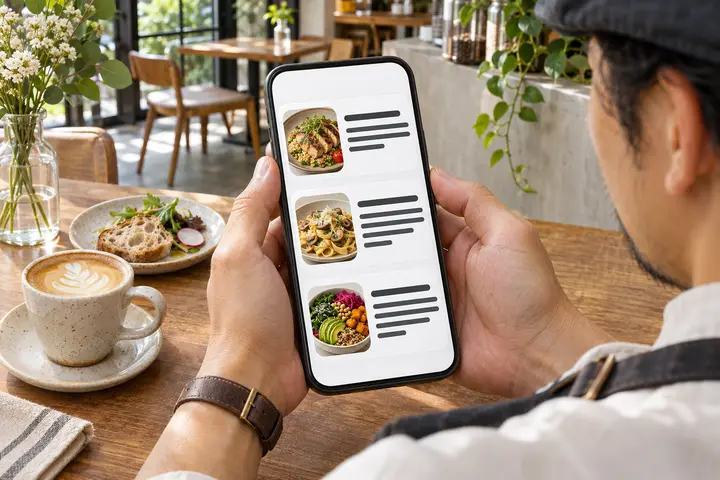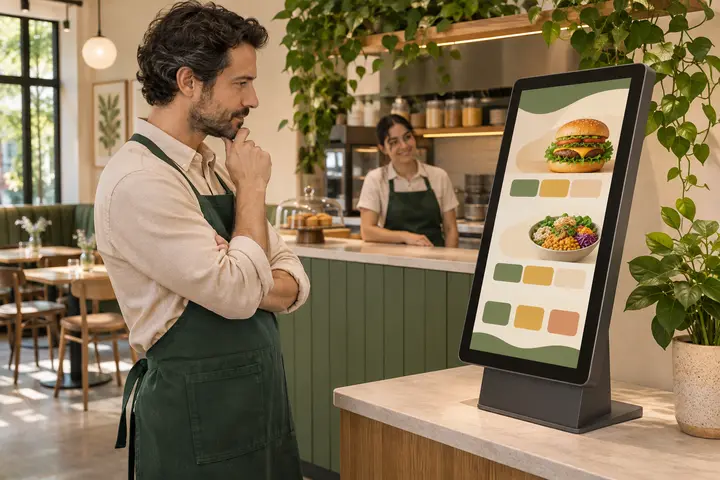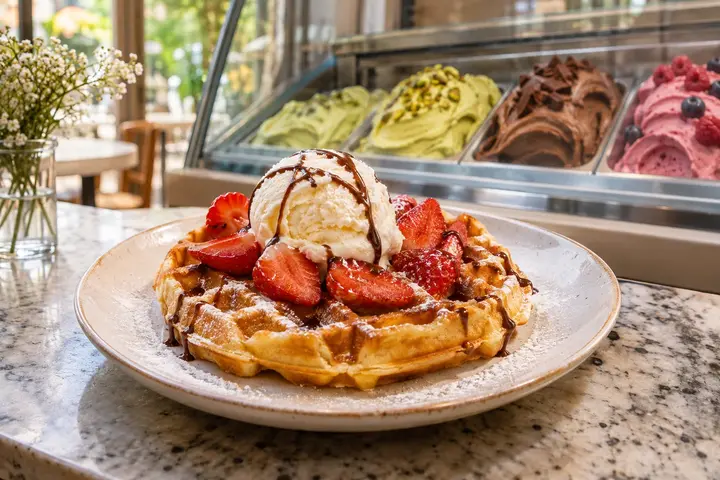
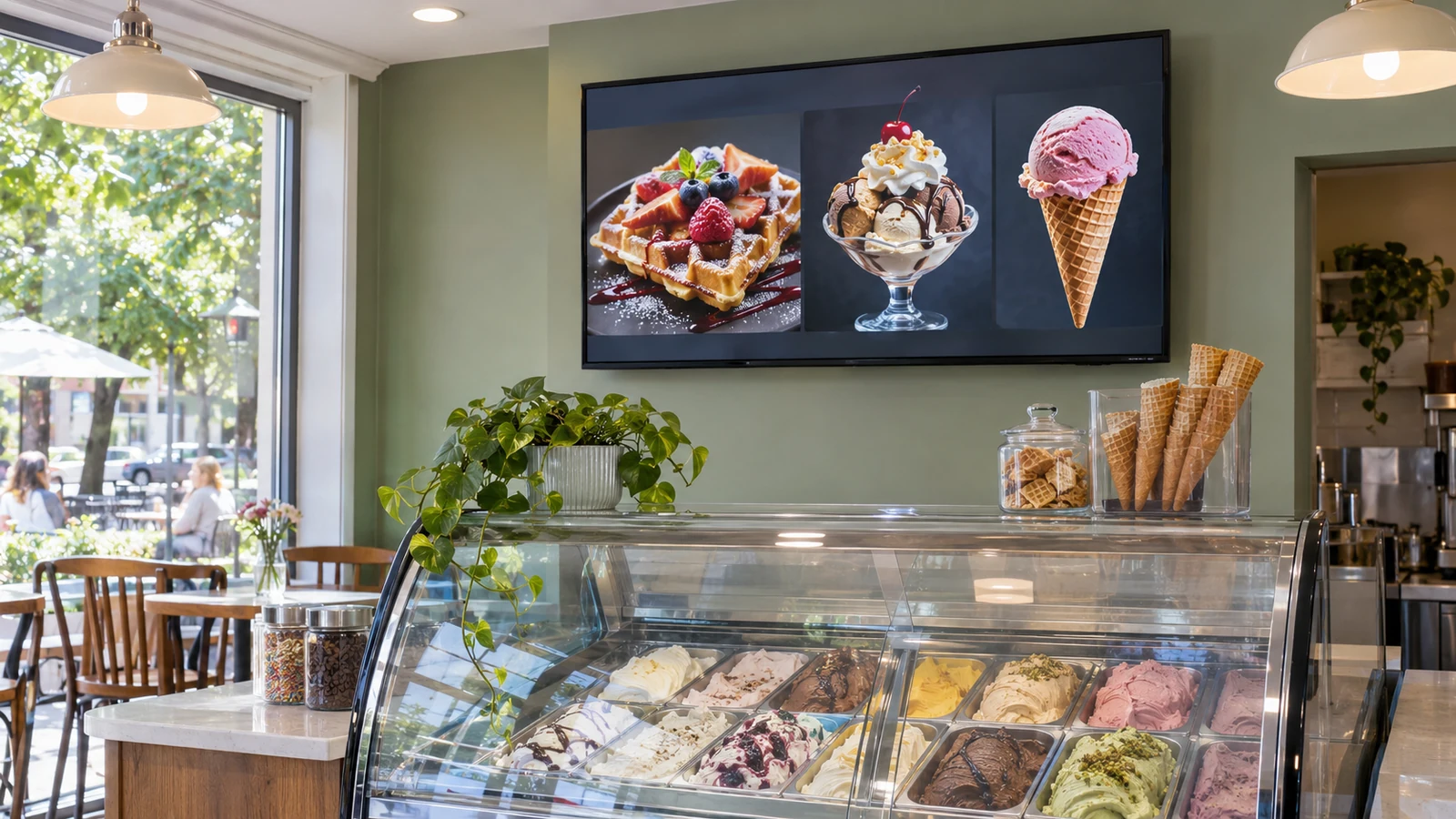
A digital menu board shows customers what a finished waffle, sundae or cone looks like while they wait at your ice cream counter. A QR menu gives them room to browse sauces, flavours, toppings and extra charges on their phones. Use the glass display for the real thing, the screen for a few tempting choices and the phone menu for details.
How can the screen extend your display case?
A customer looking into a display case can see the colour of the pistachio gelato. They may have no idea how it looks with a warm waffle and raspberries. Put that combination on the screen as a finished plate. A crisp waffle edge and the texture of the scoop do most of the work. Keep the product name and price beside the picture and say what the plate comes with. Someone at the back of the queue can start choosing while they still have time to think.
Photograph the portion your team actually serves. A close-up can show the threads of chocolate sauce, but leave enough of the plate in view to give a sense of scale. When a photo shows an extra scoop, present that serving as a named option with its own price. A cone benefits from a shot that shows its shape and the scoop together. A sundae in a glass can show its layers from the side. Pick an angle that tells the customer something about the order they are about to make.
How do you list toppings without overwhelming people?
Start with a few complete combinations. A strawberries-and-cream waffle helps a customer who wants to pick a plate and move on. Give the build-your-own crowd a separate entry. Show the base first, then let people look through sauces, fruit, scoops and crunchy extras. Use the words your staff use when taking an order. If the label at the counter says salted caramel, keep that name on the screen and in the phone menu.
Say what comes with the base and put the price of each paid add-on beside it. When a waffle comes with a choice of sauce, make that clear where customers choose a sauce. A spoonful of biscuit crumbs that costs extra should have its price on the same line. Review ingredient details when you switch a sauce or bring in a seasonal flavour. If someone asks about an ingredient or allergen, the team should be able to check the recipe and supplier information for the serving on offer.
What belongs on the digital menu board and in the QR menu?
| Where customers look | What they should find |
|---|---|
| Glass display | The actual flavours and textures on offer |
| Digital menu board | Featured desserts, readable prices and recognisable photos |
| QR menu | Ingredients, included choices and individual prices for extras |
Try reading your screen from the place where the queue usually starts. Can you see which price goes with the berry waffle? If a slideshow advances before you finish reading, give each view more time or give the essentials a fixed spot. Put the QR code at a place where guests can scan without leaning over the till. On the phone, categories such as waffles, cones and sundaes should be easy to tell apart. The shared menu link can also be used by someone who wants to look before visiting.
What can each Nina GO AI package do for a dessert shop?
QR Menu gives customers a menu link to open on their phones. Start from a photo of your existing menu and use the three-day demo to review and edit the result. The link is valid for a year. For current prices, please see our pricing page. You can update prices and dishes for free in the admin panel. This fits a counter where guests browse flavours and toppings on their phones and then give their orders to a member of staff.
Static USB Video puts a high-quality MP4 of your menu on a screen. Download the file, put it on a USB stick and play it from the stick. For current prices, please see our pricing page. The price covers one year. When you change a price or dish, you can download the new video for free from the admin panel. This works well when your main range is stable and you want a visual display above the counter. When you introduce a seasonal sundae or change a price, get the video updated and replace the file on the stick.
Live Cloud is the recommended package for a shop that wants a phone menu and screens it can keep current. For current prices, please see our pricing page. It includes four screens, a website, a QR menu and kiosk ordering. Confirm a change and it goes live on the connected screens. You can also say a price change aloud, check the preview and approve it. This helps when a menu item needs updating across screens that guests see from different parts of the shop. The menu wizard helps organise your choices. The image and video tools give you material to present a new dessert on the board.
For current prices, please see our pricing page. It includes everything in Live Cloud plus WhatsApp ordering, management of Facebook and Instagram messages and comments, and a social media plan. You can plan a post for a new sundae, follow the questions it brings in on Facebook or Instagram and receive orders through WhatsApp. Keep the name used in the post consistent with the name on the menu so guests can find the same item.
How do you know if the setup works during service?
Walk through the shop as a guest would. Find a dessert on the board, scan the code and look for the same dessert on your phone. Check that you can tell which extras come with it and which carry a charge. Then try saying the order at the till. Ask the team which words customers usually use for the serving size, sauce or topping. Familiar names can save a second explanation at the counter. Compare the Nina GO AI packages with the way your shop serves customers today.
Before you put the board and QR code into use, try these checks:
- Read a sundae’s name and price from the back of the queue.
- Find a paid topping and its price together on your phone.
- Look at the display case and check that the featured flavours are available.
Frequently asked questions
Can I use a QR menu in a shop without a screen?
Yes. Guests open the QR menu on their phones. Place the code where they can scan it while they wait or sit. A screen is useful when you also want to showcase the finished desserts in the shop.
How does an update work with USB video?
Static USB Video uses an MP4 file. When you change the offer, an updated video replaces the file on the stick. With Live Cloud, approved changes appear on the connected screens.
What does Live Premium add for an ice cream shop?
It adds WhatsApp ordering, management of Facebook and Instagram messages and comments, and a social media plan to everything included in Live Cloud.