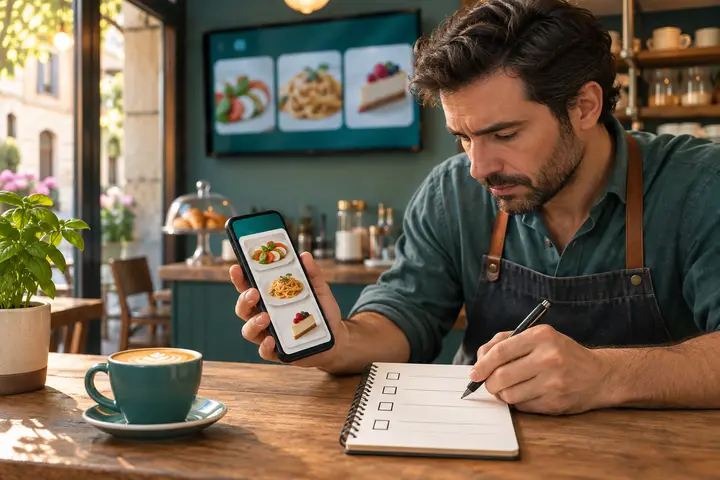
Digital menu setup help becomes easier to request when a cafe owner can point to the exact step that stopped working. “The menu does not work” leaves many possibilities open: perhaps the source file was never sent, perhaps the account details have not arrived, or perhaps the public menu differs from the panel. Before changing anything else, write down what you were trying to do and what actually appeared. This guide offers a practical way to prepare that message without passing around account credentials or promising a particular support response time.
Which step was the last to work?
Describe the route you followed in ordinary words. If you used the trial entry through WhatsApp, distinguish opening the conversation from sending the prepared message. Nina GO AI opens that conversation with a ready message; you still send it yourself. If you chose registration and uploaded the menu from the panel, say so instead. These are different starting points, and a clear report should not mix their steps together. You can compare your route with the verified setup instructions.
Next, identify the last result you actually saw. Did the conversation open, did you send the menu, or did the panel display the imported categories? Avoid writing that a stage completed just because you pressed a button. Record the visible result. When the menu is ready, the trial account is opened and panel access details arrive in the same conversation. A screenshot of an earlier stage cannot establish that this later stage has already happened.
Explain the expected result and the observation separately
Write a short pair of sentences: what you expected, then what you observed. For example, you may have expected a dish category after uploading the menu but found that it was absent. That is an observation to investigate, not proof that a particular component is defective. Include the name of the relevant category and whether the source document contains it. Do not repeatedly upload unrelated versions while waiting for the next check; changing the source can make the original issue harder to reproduce.
Say whether the issue concerns the management panel, a guest phone menu, an exported video or a Live screen. These are different surfaces. A downloaded USB video requires a new file and transfer when content changes; the old file cannot demonstrate whether a new publication reached a Live screen. You do not need to diagnose the underlying cause. Merely identifying the surface prevents the report from confusing distinct workflows.
Prepare evidence that shows the problem
Choose a screenshot that includes the relevant page area and the visible message, if one appears. Add a plain description of what you clicked immediately beforehand. Remove unrelated customer conversations, personal information and account details from the image before sharing it. This is a recommended operating practice, not a claim that the product automatically detects or hides sensitive material. Keep the original privately in case you need to check what was obscured.
If the issue is imported content, send the relevant source page as well as the result that needs review. Nina GO AI can read menu photos, a PDF or a QR menu link, but the business checks the extracted information. Compare the source and result without asking the model to invent missing ingredients or confirm allergens. The menu transfer guide explains why importing and approving content belong to separate steps.
Keep account access separate from screen pairing
Do not include a password in a general troubleshooting description. Describe which login stage failed without exposing the access details themselves. A screen code also has a specific purpose: it pairs a device with its screen assignment; it is not a code required to begin a trial. If that distinction is the source of confusion, read the trial and pairing explanation before continuing. Record which route you were using rather than trying codes in unrelated places.
Finish the report with the change you are asking to verify: receipt of the source, access to the panel, correctness of imported content or display of a publication. After receiving guidance, repeat the same narrowly defined action and compare the result with your original observation. Keep a short internal note so the next colleague can follow it. To explore the verified workflow with your own menu, test Nina GO AI for free and review the results before using them in service.