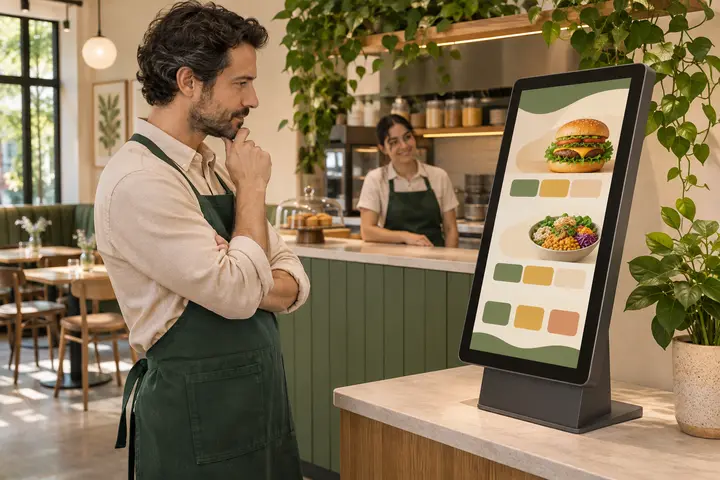
A restaurant kiosk checklist should begin before the first guest needs help. For a cafe, takeaway or restaurant owner, the useful question is whether someone can choose the intended dish and whether the business receives the intended order. A bright screen alone cannot answer that. Treat opening preparation as a short rehearsal with staff, using your own menu and the functions actually enabled in your account. This article describes an operational check, not a promise that every device or optional workflow is supported.
What should the guest be able to choose?
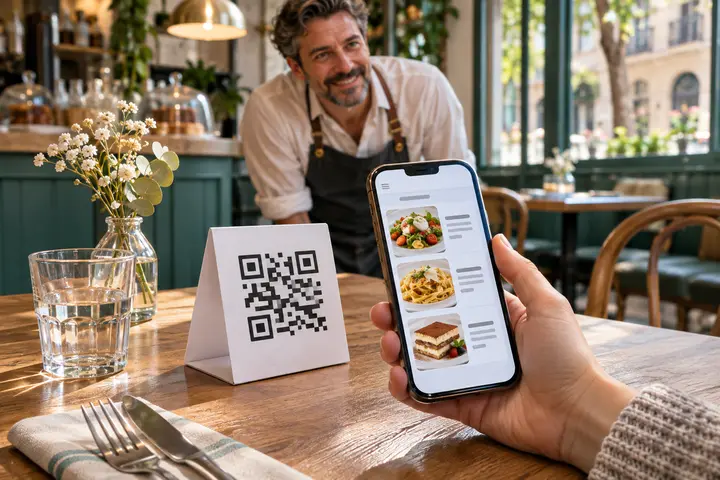
Start with an ordinary order rather than the most complicated combination on the menu. Ask a colleague who did not prepare the content to find a dish by its name. Watch without immediately pointing to the correct category. If the colleague has to guess whether a photograph represents the main dish or an extra, improve the description before inviting guests to use the screen. Pictures help orientation, but the written offer remains the reference for what the kitchen can supply.
Compare the selected product with the menu your team has approved. Check the name, stated ingredients and displayed amount. Where your active ordering setup offers choices, rehearse those choices individually. Do not describe every preference as an available digital option unless it really exists in your setup. A note about allergies needs human attention; a menu description or generated image cannot establish whether a dish is suitable for a particular guest. Staff must know whom to ask.
Follow the order to its receiving point
Agree with the receiving colleague that you are rehearsing before sending anything. Use the test procedure appropriate to your account and avoid creating an unexplained production order. Observe what the guest sees after submission, then ask the receiving team to identify the corresponding order. Compare the dish and any supported selection with what the guest intended. A reassuring screen at the kiosk is not sufficient evidence that the receiving side has understood the same request.
Keep payment separate from this observation. The presence of kiosk ordering does not establish that card acceptance, refunds, receipts or a cash register connection are included. Confirm your actual payment arrangement and explain it clearly to guests. If the journey ends with staff assistance, make that handoff obvious. Do not ask a guest to submit again merely because a colleague has not checked the receiving side; repeated submission can make the situation harder to interpret.
Prepare help before the queue forms
Choose a place where staff can assist without blocking the counter or the route to seating. Look at the screen from the position of a guest using it, including reflections and the visibility of the next action. These are practical observations about your premises, not a device certification. If someone cannot comfortably use the screen, offer an assisted ordering route. A guest should not need to understand your internal menu structure to obtain help.
Give the opening team a clear responsibility: who checks the content, who confirms reception and who responds when someone is uncertain. If the connection fails or order arrival remains unclear, suspend that ordering route until the situation is understood. Online order transmission needs internet access. Do not promise that orders will continue offline or be sent later automatically. Record what was observed so the next shift can distinguish a content problem from a reception problem.
Connect the rehearsal to your menu workflow
Nina GO AI's verified Live Cloud scope includes kiosk and ordering functions, with usage limits and compatible device conditions. The business still reviews information read from submitted menu photographs, a PDF or a menu link. Start with the product workflow and verify your enabled functions before presenting them to guests. A digital ordering route should reflect the approved menu rather than a separate, forgotten copy.
For the broader guest journey, read the introduction to self service. For keeping the underlying offer consistent, see one menu across ordering and displays. These guides support different decisions; the opening rehearsal adds a concrete acceptance question: can staff trace the guest's intended choice to a clearly received request? When you are ready to inspect your own menu, try Nina GO AI free. Keep human review and an assisted route in place while you evaluate the result.