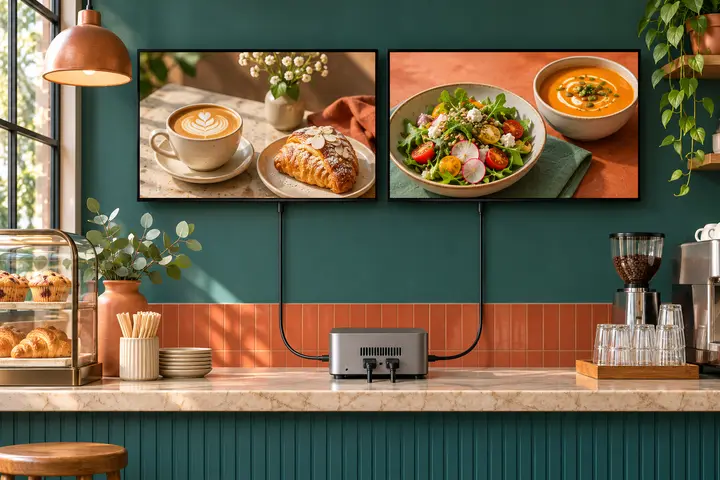
You want coffee on the screen above the bar and lunch dishes on the screen beside collection. Both televisions work, yet both show the same menu. Before changing the design again, inspect how the pictures reach the displays. Different menus shown at the same time require independent picture outputs and connections. A mirroring HDMI splitter repeats the picture it receives. Connecting more televisions to that picture does not give each television its own menu. This distinction is worth checking before buying equipment or arranging the cables behind a finished counter.
Define the job of each screen
Write down what each display should show during the same moment of service. Use positions that staff recognise, such as the coffee counter and the collection point. If both positions need the same offer, a shared picture may match that requirement. If they need different categories, the requirement is independent content. The decision starts with the guest's view, rather than the number of sockets on an accessory. Sketch the screen positions and put a short content description beside each one before asking a supplier for advice.
Keep this sketch separate from a timetable. Showing breakfast and then lunch on the same display is a different question from showing drinks and lunch simultaneously on separate displays. The latter is the question addressed here. It asks whether the complete device and connection arrangement can carry distinct pictures at once. An attractive menu template cannot remove a limitation in that arrangement. Agree the intended result with the person installing the hardware so that everyone tests the same requirement.
Trace the complete picture path
Follow the path from the device producing the picture to each physical screen. Identify the actual output, any adapter, the cable and the destination display. A mirroring splitter can distribute the same source picture to several screens, but it does not create independent pictures. Multiple visible connectors alone are therefore insufficient evidence. Ask whether the proposed device can produce separate pictures simultaneously through the proposed connections, at the intended resolution and with the intended content. Keep the answer tied to the actual equipment being considered.
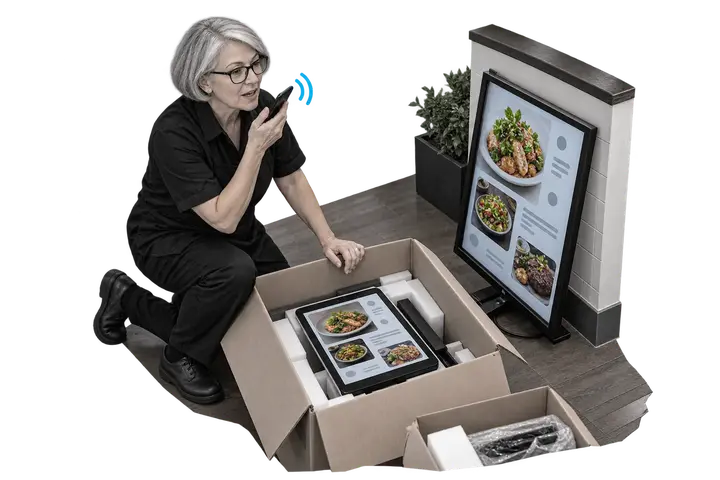
Nina GO AI's verified guidance makes this hardware distinction explicit. Different menus require independent picture outputs and connections for each screen. Suitability depends on the screen count, resolution and amount of video in the content. Avoid treating a generic label such as a small computer as a compatibility promise. Ask the equipment supplier to demonstrate the complete arrangement. A device that handles a simple still layout in one setup may need a different assessment for a more demanding combination of displays and video.
Connect the right Live destination
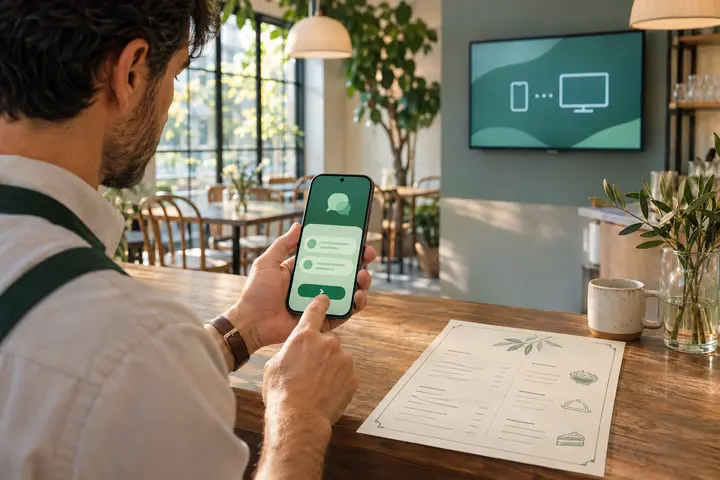
For Nina GO AI Live use, open the screen address in compatible Chrome. Pair through the QR route or the screen code in the panel, then select and confirm the relevant screen and its task. Available tasks depend on the enabled modules. Pairing identifies the destination within the workflow; it does not transform mirrored hardware into independent outputs. Keep the physical screen location and the selected task together in your installation notes, especially when similar televisions are mounted beside each other.
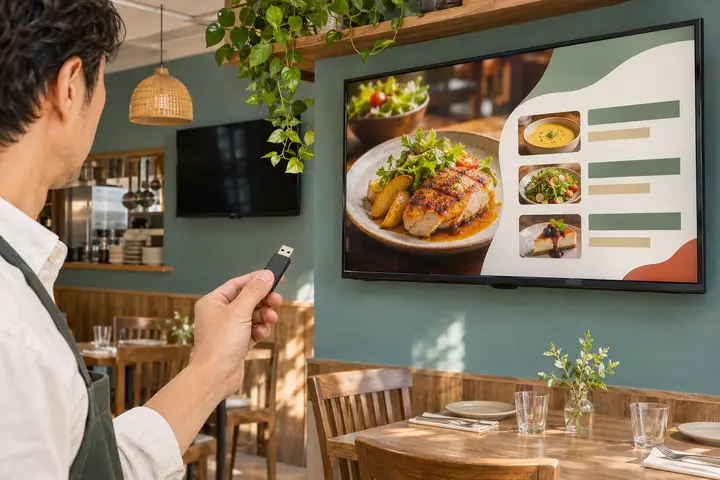
Do not infer package scope from the presence of a screen. The QR Menu option concerns the phone menu and business website link. Static USB Video uses a downloaded HD MP4 on compatible equipment; a changed file must be downloaded and transferred again. Live uses a screen connection for supported updates. Choose the appropriate route using the current product workflow and plan information. An automatic offline fallback or uninterrupted operation should not be assumed for Live.
Demonstrate independence before service
Put visibly different, approved content on the intended destinations and view the physical screens together. Confirm that the coffee position shows coffee while the collection position shows the agreed lunch content. Then make a supported change to the intended Live destination and check the result at both positions. This is a proposed acceptance check for your restaurant, not a claim that a particular installation has passed. Include representative video where you intend to use video, rather than testing only an empty or unusually simple layout.
Record which device, output, connection and task belong to each screen. Keep the information where the next responsible colleague can find it before replacing a cable or reconnecting equipment. If both displays still show the same picture, resolve the output arrangement before rewriting the menu. Nina GO AI can be explored with the verified workflow while you evaluate hardware suitability separately. To review your own menu and ask about the intended setup, test for free; confirm the relevant scope and equipment conditions before committing to a deployment.