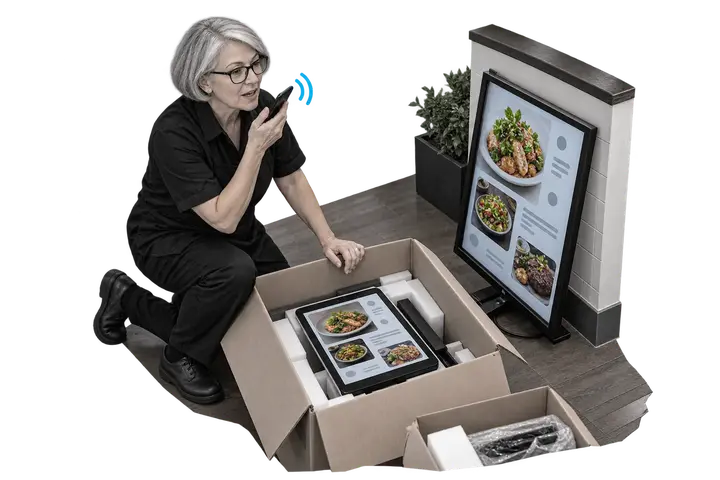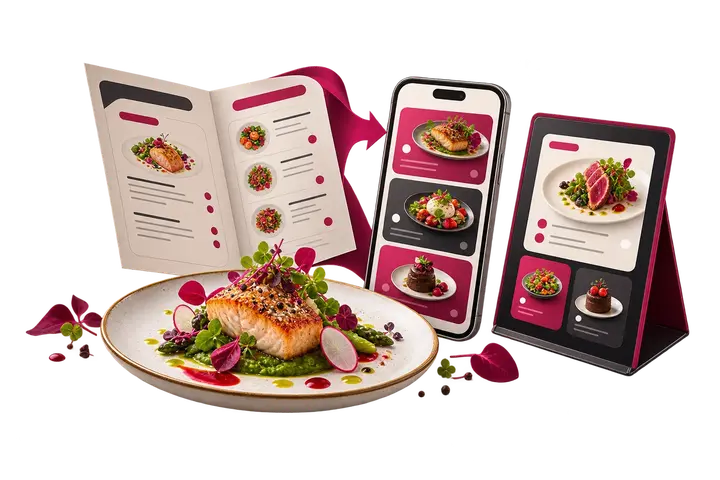
The price is correct in the panel, yet the television above the counter still shows yesterday's offer. Before editing the product again, establish how the display receives its content. A downloaded video and a live screen link are different delivery methods. Both can serve a restaurant well, but they require different update routines. Understanding the route from source to screen is the fastest way to find where an old version remains in use.
Trace one product through the workflow
Choose a product whose approved information has changed. Note its name, the correct current value and the screen where the old version appears. Then identify whether that screen plays a file from USB, a local media player, a playlist or a live page. Ask the person who installed it if the route is unclear. Repeatedly changing the source without knowing the route can introduce new errors while leaving the original display untouched.
Inspect the customer-facing output as well as the editing panel. A saved draft may differ from a published result, depending on the workflow. Keep these states separate in the team's language: prepared, approved, published and verified on the display. The exact controls vary, but the distinction remains useful. It tells the next colleague what has actually happened rather than relying on the vague statement that the menu is “done”.
An MP4 stays the file that was exported
A video stored on a USB stick contains the menu as it existed when that video was produced. A later source edit does not travel into the file automatically. Use the supported process to create or download the revised output, transfer it to the right media and select it on the device. Check playback after the transfer. Simply keeping the new file on an office computer does not update the restaurant television.
Pay attention to duplicate filenames and playlists. A media player may still be configured to loop the previous video even though a new file is present. Establish a clear naming convention that includes an understandable version or date, and verify the actual selected file. Keep any older version out of the active playback selection. The objective is reliable operation, not an elaborate archive that staff cannot navigate during service.
A live screen needs a working delivery path
For a live setup, confirm that the display or connected device is opening the intended screen link. Check whether the approved change has been published through the available controls. Inspect connectivity and the device's current state if the content has not arrived. Avoid assuming that every television has the same browser behaviour or that any old link on the device is necessarily the correct one.
Follow the installation guidance for your actual hardware and configuration. If a reload or restart is needed, record the observation and the process that resolved it. Do not turn an improvised fix into a general rule for every display. A stable setup should have an understandable recovery path, and staff should know whom to contact when a device remains out of date after the normal publication procedure.
Separate content errors from delivery errors
Open the relevant public output on another device if the workflow permits it. If the published output itself shows the old price, review the content and publication steps. If the output is correct elsewhere but the installed screen differs, investigate that display's route. This comparison narrows the problem without changing unrelated products. Record screenshots or photographs of the discrepancy so support can see what each surface showed.
Also check whether several screens intentionally use different content. A drinks board should not be judged against a lunch board merely because both connect to the same restaurant account. Match the output identity with the expected purpose before replacing anything. A clear list of screen locations and content roles helps prevent someone fixing the wrong display while the guest-facing problem continues.
Choose the update method around daily work
Nina GO AI's published offering distinguishes Static USB Video, which provides a downloadable MP4 route, from live screen management in live packages. This difference matters more than a broad claim that both options are digital. A restaurant with occasional seasonal changes may be comfortable transferring a file. A team making frequent service changes should evaluate the full live workflow, including compatible devices and the responsibilities of staff.
Review the current package details before choosing and use the workflow guide to frame a practical demonstration. Ask to see a product change travel all the way to a sample display. Confirm what is included, what hardware is needed and what the team must do after an edit. A successful demonstration ends with the displayed content matching the approved source.
Write a short screen-specific update card
For each display, record its location, delivery method, responsible colleague and final verification step. For USB playback, include how the revised file reaches the device and how to confirm it is playing. For a live screen, include the supported publication and recovery procedure. Keep access details in the appropriate secure place rather than printing sensitive credentials on the card.
At the next menu change, use that card instead of relying on the memory of whoever last touched the television. Check a visible product and its price before calling the update complete. The result is an operating routine that explains what needs to move, where it needs to go and how staff can recognise success. That clarity prevents a correct menu in the panel from becoming an incorrect promise above the counter.