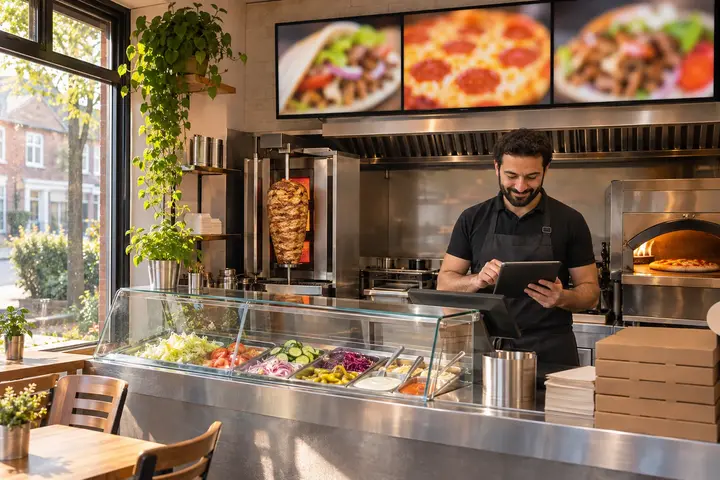
In brief. All four Nina GO AI plans are available now. QR Menu puts the menu on guests’ phones, and the recommended Live Cloud plan adds live TV menu boards and kiosk ordering. Static USB Video plays a fixed menu from a USB drive, while Live Premium adds WhatsApp ordering and Meta tools to Live Cloud.
What should your digital menu do during service?
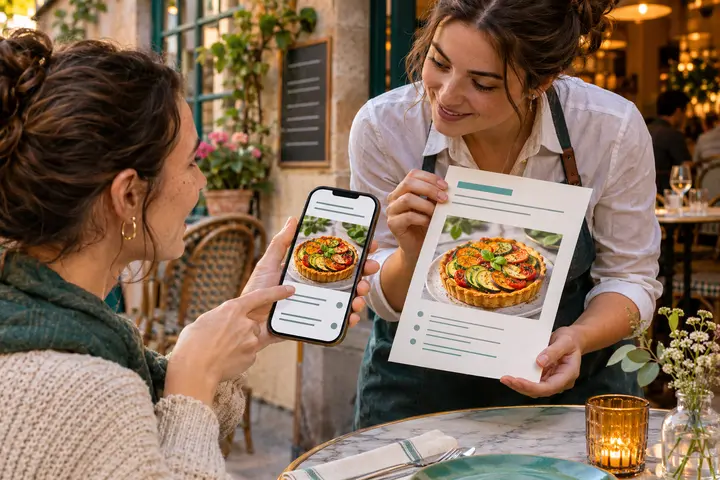
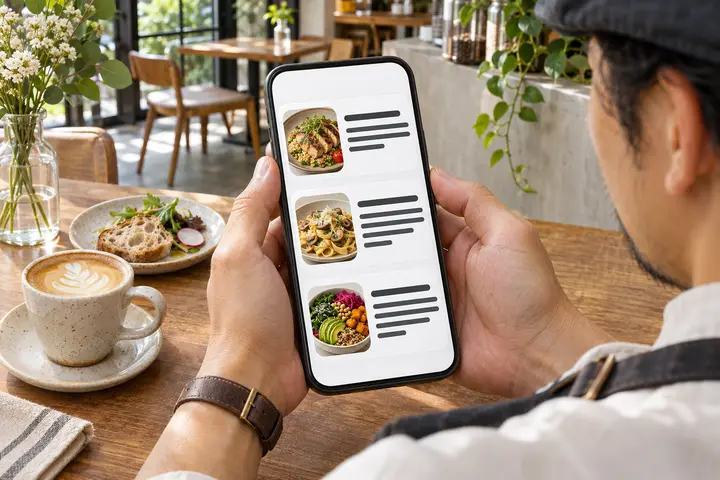
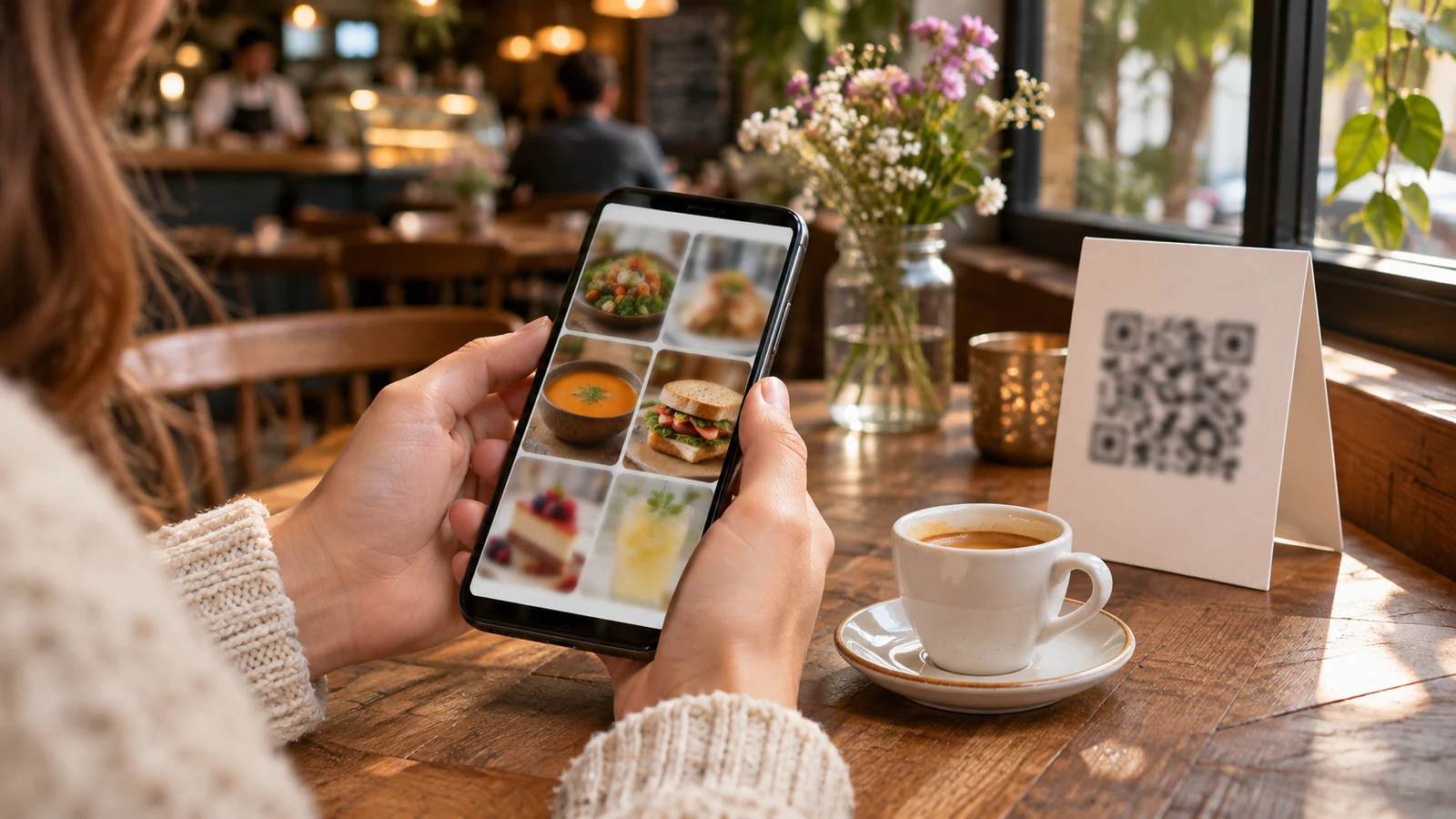
Think about the first moment a guest needs your menu. At a café table, the guest may want to read the options before the server arrives. In a takeaway queue, they may decide what to order while looking up at a screen. Those are different jobs. A QR code gives the person at the table a link to open. A TV board gives the people in the queue something they can all see.
Next, decide where you want the order to go. A guest might tell a server, order at the counter or place an order using a self-service screen. If your staff already handles orders the way you want, a menu guests can read may be all you need. If you also want to add self-service, look for an ordering system. You can see how your existing menu becomes a digital one on the how it works page.
Who is QR Menu for?
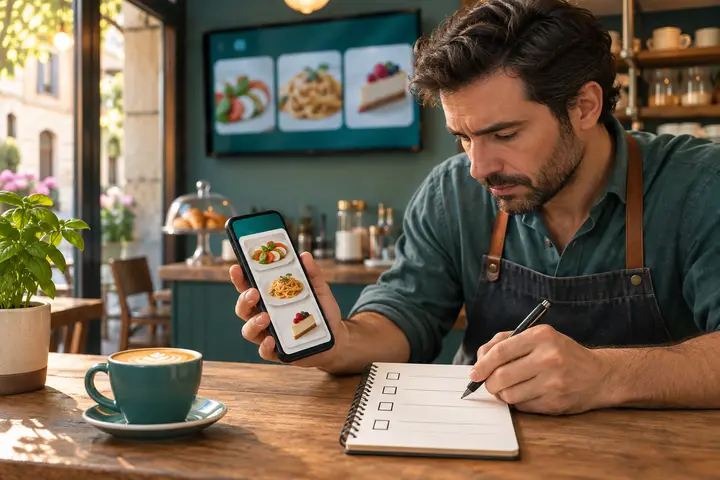
QR Menu suits a café or small restaurant that wants a phone-friendly menu while keeping orders with the team. A photo of your existing menu becomes a digital menu automatically. You get a link you can share and access to a library of food images. Imagine a customer asking what cakes you serve before meeting a friend for coffee. Send them the menu link, then let them order at the table when they arrive.
The 3-day demo gives you time to review and edit the menu and see changes live on a phone during the trial. Check portion options, dish names and prices against your original before you share it. For current prices, please see our pricing page. You can update prices and dishes for free in the admin panel. The plan covers viewing and sharing. TV display and ordering are outside the scope of the plan. AI tools in the admin panel require credits.
How does Live Cloud keep screens current?
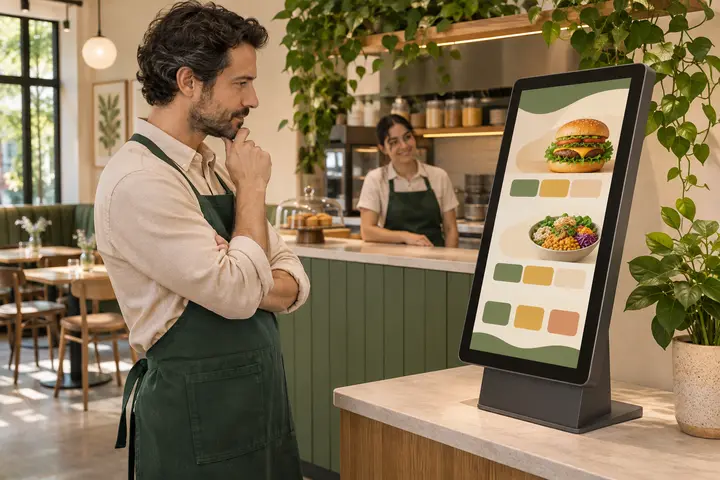
Live Cloud is the recommended plan when the menu behind the counter changes throughout the week and you want to take orders as well. Changes you publish appear on the connected screens. Say you need to update a kebab price to 8,50 €. You can say the new price, check the preview and confirm it. That gives you a chance to catch the wrong dish or amount before guests see the change.
The plan includes 4 screens, a restaurant website, a QR menu, automatic menu creation from a photo and kiosk ordering. A kiosk is a touchscreen where guests place their own orders. The menu wizard guides you through editing. Image and video generation help you present dishes, and the statistics and competitor analysis tools help you review business decisions. WhatsApp ordering, Facebook and Instagram management, and Meta advertising are features of the Live Premium plan.
For current prices, please see our pricing page. When you plan the setup, stand where your guests queue and check whether they can read each screen. Then decide who will review and publish changes during a shift.
How does Static USB Video put your menu on TV?
A pizzeria may keep its classic slices and drinks on the screen for a long time. Staff take orders at the till and only need to replace the display when the selection changes. Static USB Video is available now and suits that routine. Your menu becomes a high-quality MP4 file. Download it, copy it to a USB drive and play it on a compatible TV. Check that the screen can play the file from USB before you plan around it.
For current prices, please see our pricing page. The price covers one year. When you change a price or dish, you can download the new video for free from the admin panel. When a price changes, you replace the video on the device. Live remote updates, QR menus and order taking are outside this package. Think about how often you would do that swap. For a stable menu the job comes up occasionally, but a rotating special can mean returning to every screen each time.
What does Live Premium add?
Live Premium is available now. It combines the Live Cloud features with WhatsApp ordering, Facebook and Instagram management, Meta advertising and reports. Picture a takeaway that already gets messages asking what is available for collection. If the team wants to take orders through WhatsApp and has someone responsible for social channels and campaigns, those features address everyday work. Decide who will check messages during service and who will use the reports.
For current prices, please see our pricing page. Plan your advertising budget separately from those charges. If your priorities are live TV menus and kiosk ordering, the recommended Live Cloud plan covers both.
What should you test before deciding?
- At a table. Open the menu on a phone and find a dish with a choice of sides. Check whether both the choices and the price are clear.
- In the queue. Look at the TV from where guests wait. Test the view when daylight hits the screen.
- At shift handover. Walk through a menu change with the team. Give someone responsibility for checking it and publishing it.
Which plan matches your priority?
VAT is added to sales in Germany. Check the pricing page for the package details.
| What you want to do | Plan | Availability and price |
|---|---|---|
| Let guests read the menu on their phones | QR Menu | For current prices, please see our pricing page. |
| Keep TV menus current and take kiosk orders | Live Cloud | For current prices, please see our pricing page. |
| Play a fixed menu on a TV from USB | Static USB Video | For current prices, please see our pricing page. |
| Add WhatsApp ordering and Meta tools | Live Premium | For current prices, please see our pricing page. |
Frequently asked questions
Can you get started without a TV?
Yes. QR Menu lets guests read the menu on a phone and give their order to your team.
Can you preview your menu before buying?
Yes. Upload a photo of your menu and check the digital result. The QR Menu demo lasts 3 days. See the frequently asked questions for more details.
Which plans let you change a TV menu price remotely?
Both Live Cloud and Live Premium show the new price on connected menu boards after you review and publish the change. With Static USB Video, you replace the video file on the TV using a USB drive.