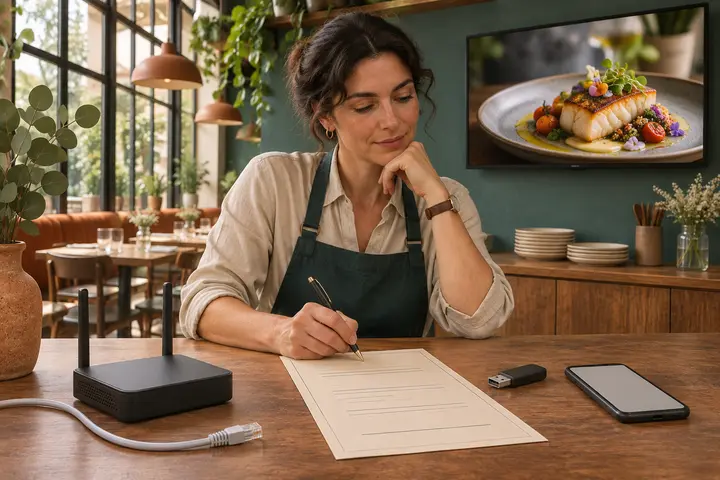
An internet interruption raises a practical restaurant question: what can guests still read, and what can the team still change? A screen that remains lit does not answer either question. The connection used by the guest, the device showing a menu and the route used to publish changes may differ. Prepare a modest continuity routine before service, with responsibilities and a readable fallback. Treat it as an operating decision for your own restaurant, rather than a promise that a digital product keeps every channel available.
Map the routes separately
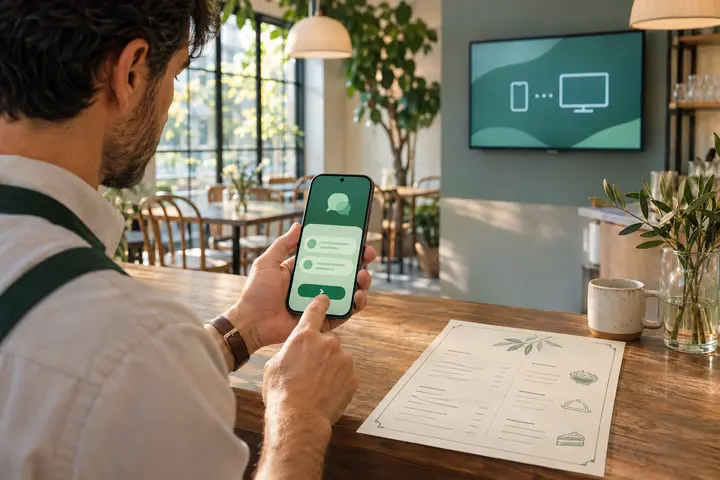
Start with a simple list of guest touchpoints: the phone at the table, the display above collection and the menu staff use to explain dishes. Beside each, write where the information comes from and who checks it. A guest's mobile connection and the restaurant's internet connection are different routes. Testing a QR link on a phone using mobile data therefore does not demonstrate that the restaurant's screen connection works. Equally, a working display does not demonstrate that every guest can open a web menu.
Nina GO AI's QR Menu option includes a menu that opens on a phone and the restaurant's website link. This describes an online access route. Do not interpret the existence of a printed QR code as evidence that its destination is available offline. During a quiet period, check the actual guest journey with the connection conditions you intend to support. Record what was observed, without turning a successful local check into a universal availability guarantee.
Distinguish Live from a downloaded video
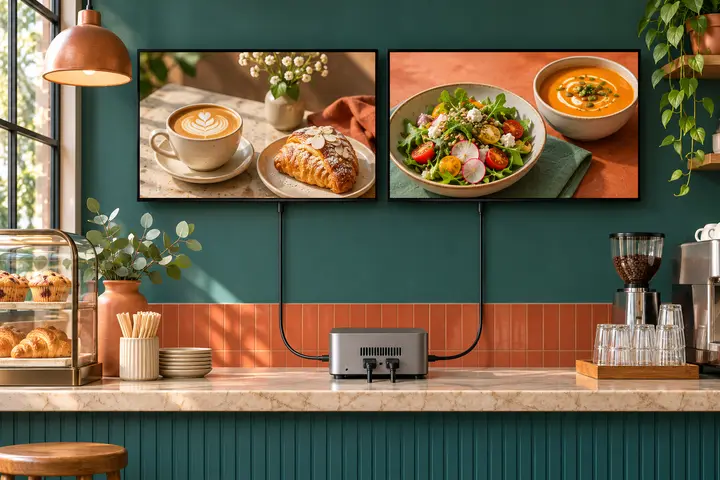
Nina GO AI Live uses a screen connection, and supported changes are sent to the relevant displays. Its verified guidance does not promise automatic offline operation or uninterrupted service during an internet failure. Build your routine around that limit. If a connection fails, staff should check what the physical display currently shows before telling guests that a correction has reached it. A change entered in management is not, by itself, visual confirmation of delivery at the counter.
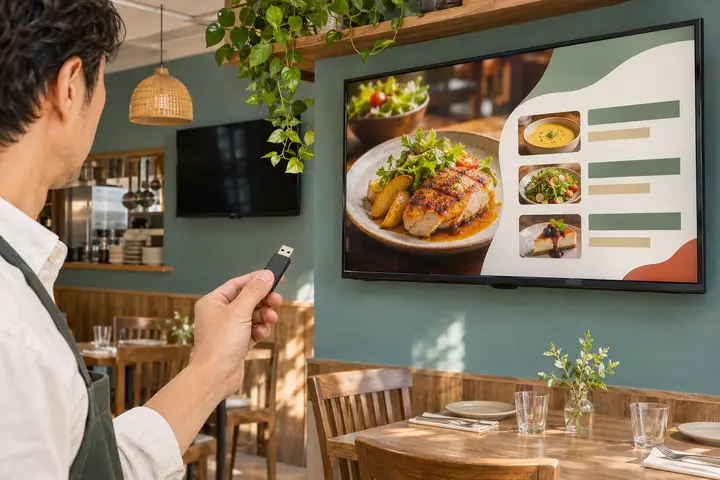
Static USB Video is a different route: download an HD MP4 for the screen and play it through USB on compatible equipment. The downloaded file does not need internet while playing. That property concerns file playback; it does not turn the file into a live menu. A later menu change requires a newly downloaded file to be transferred. If you prepare such a file as part of your own contingency routine, check its contents and the actual playback device in advance. Automatic switching from Live to USB is not established here.
Decide what staff can safely offer
Choose a person responsible for the information guests receive during an interruption. Keep a checked paper menu or another locally available reference that the team can actually read. This is an operational suggestion, not a claimed Nina GO AI feature. The reference should reflect what the kitchen is prepared to serve. If availability changes, the team must explain that change directly rather than assuming every disconnected display has received an update.
Pay particular attention to ingredients and allergen information. Nina GO AI requires the business to review read or generated menu information. A missing connection never makes an uncertain ingredient claim acceptable. Staff should refer questions to the person who can verify the kitchen information. Avoid inventing substitute dishes, guarantees or availability statements merely to keep the service conversation moving. A clear statement that information needs checking is more useful than a confident answer based on an old screen.
Rehearse recovery before a busy shift
Walk through the routine at an agreed quiet time. Identify the affected connection, observe the guest view, bring out the chosen reference and explain who authorises corrections. Keep the exercise limited to equipment and content you control. Note the last checked menu state so the next shift knows which information was verified. The aim is an understandable handover, not an invented recovery-time target or a claim that a particular network arrangement cannot fail.
When the connection returns, compare the menu in management with the real screen and the phone view. Remove temporary references only after the team has checked the intended offer again. Read how Nina GO AI works and confirm the relevant option on the plans page. To examine the workflow with your own menu, try it free. Use the trial to ask concrete questions about your equipment and service routine; do not assume every plan includes Live tools or that the entire service is free.