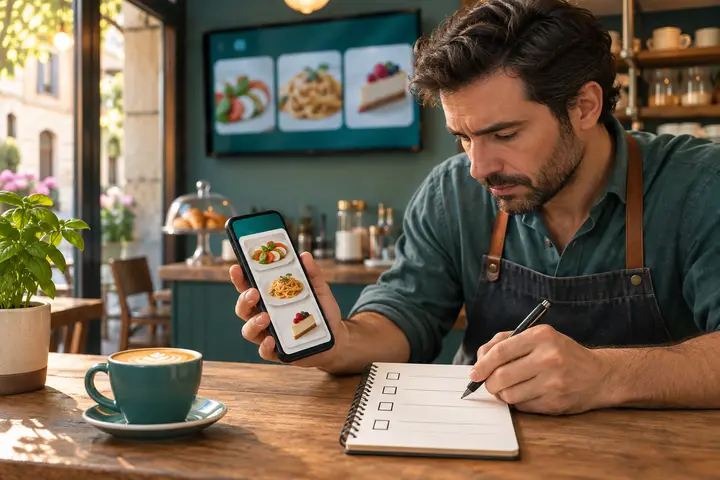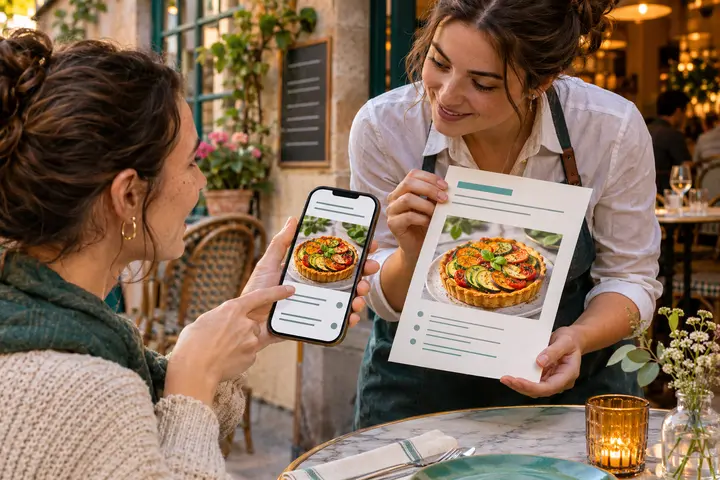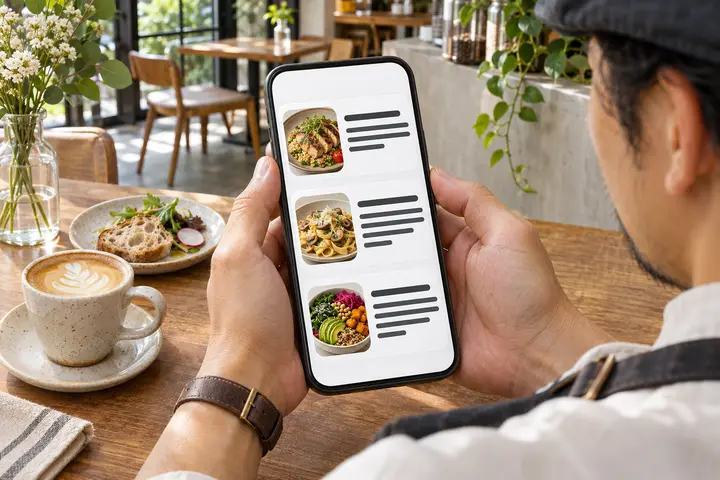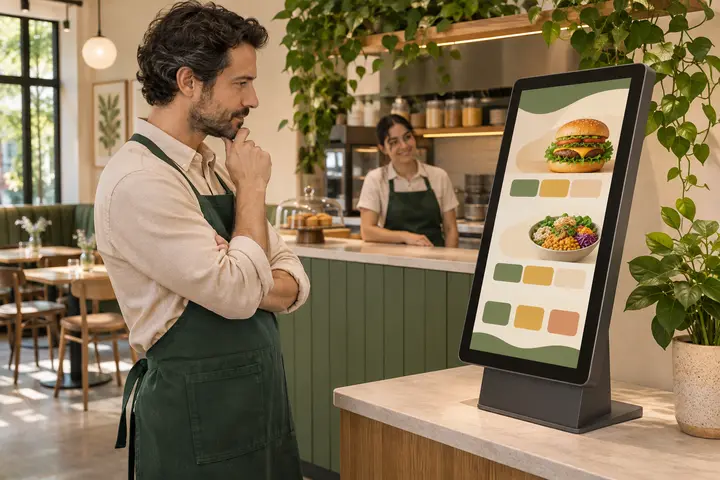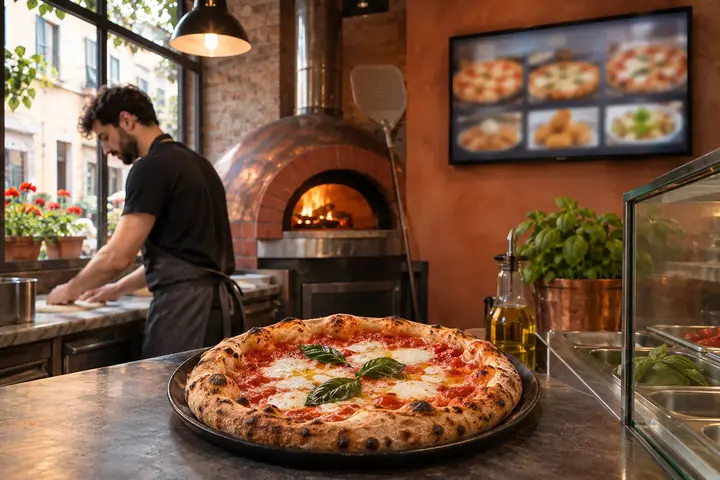
A digital menu for a pizzeria puts the day’s special on the menu board and gives customers the full choice of sizes and toppings on their phones. Nina GO AI can keep connected screens up to date with Live Cloud, the recommended plan for a pizzeria that needs a display and ordering. Live Premium adds WhatsApp ordering and tools for managing Facebook and Instagram conversations and planning posts.
What should a pizzeria put on its digital menu board?
Picture a busy Friday at the counter. Someone has walked in to order a pizza. Another person has come to collect theirs and is looking for the pickup counter. A couple halfway back in the queue are trying to work out whether the board’s special includes their usual large pepperoni. Give each person the information they need for their next move. Keep the name of the special, the size and the pickup condition close to the price. Use a short, readable direction to the collection point.
The best test is to stand at the entrance during service. Can you see the name and size before joining the queue? Does the afternoon light catch the display? Do the prices stay on screen long enough to read? Give the featured pizza a photo big enough to recognise. Keep the less common combinations on the phone menu, where customers can look them up at their own pace. A short board can still represent a broad range when the next place to look is obvious.
How can a QR menu make sizes and extras clearer?
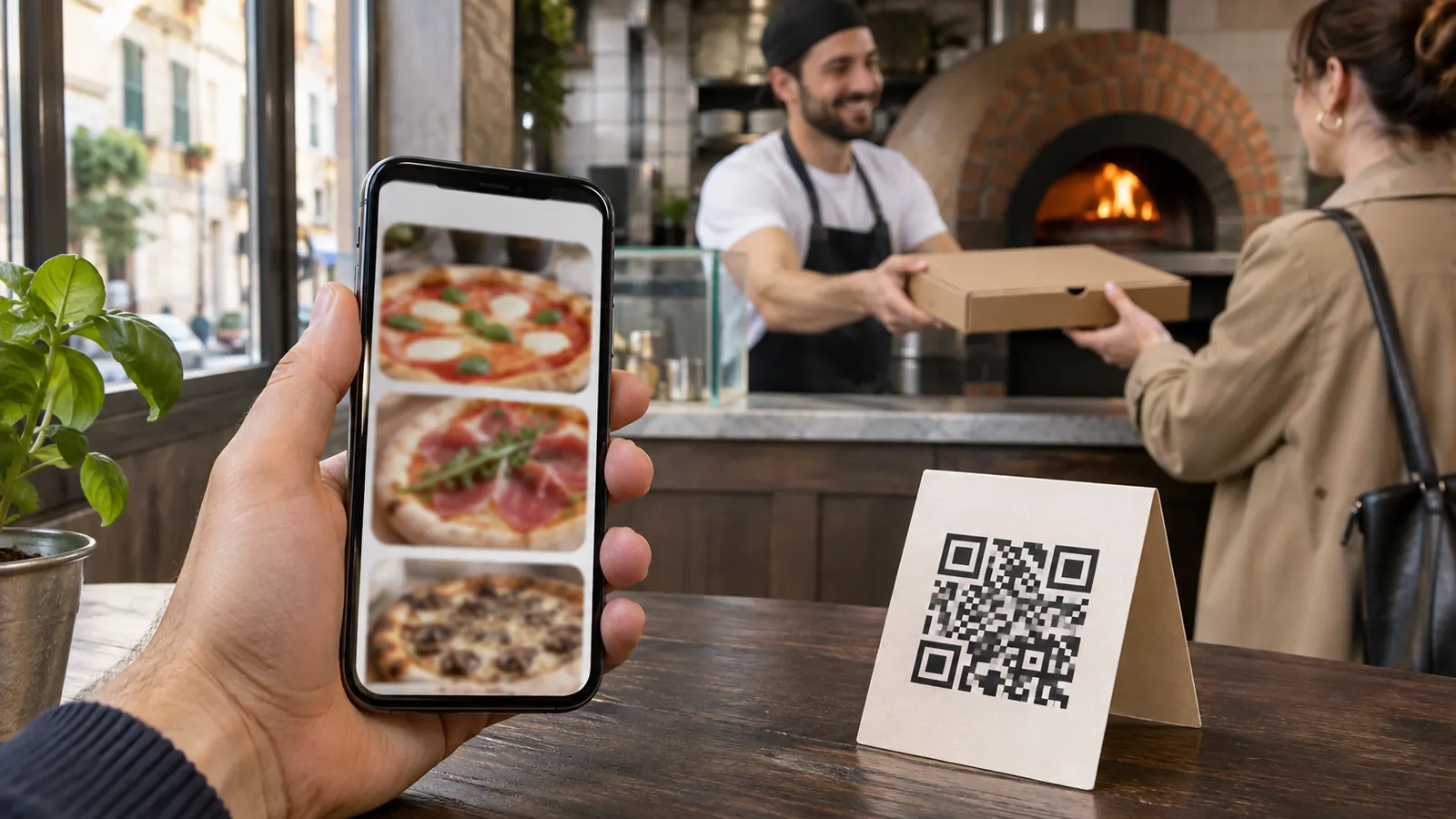
A QR menu opens when a guest scans a code with their phone. For a Margherita, describe the basic pizza first. Then show the sizes as your staff call them, with the matching price next to each one. If your names are regular and large, adding your actual dimensions can help a guest judge how much to order. A close-up of a smaller pizza can easily fill the same space as a family-size photo.
Put the optional toppings next to the pizza they go with. If mushrooms are part of the standard recipe, list them among the ingredients. If an extra portion of mushrooms costs more, show that separately and make the charge visible before the order is sent. Test any options that depend on size or availability with the person who works the oven. The guide to pizzeria sizes and toppings goes further into setting up that choice.
How do you run a pickup special without confusing the queue?
Say your Tuesday special is for selected large pizzas collected from the shop. Use the same name on the TV, the phone menu and at the till. Put the pickup condition beside the price, where a guest can see it before comparing it with a delivery order. On the phone, explain which pizzas qualify, how extras are charged and where to order. Give the team a short answer to use when a guest shows a screenshot from another day.
Live Cloud sends changes to connected displays. Tell Nina what price or promotion you want to change, inspect the preview and approve it before it appears on the board. Check the result from the customer’s side of the counter. With Static USB Video, the display plays the MP4 on the drive, so swap in the updated file before the next service. With either setup, give someone on shift responsibility for checking the screen when the offer starts and when it ends.
- Before opening. Compare the TV offer with what a phone shows after scanning the QR code.
- At the busiest point. Agree which alternatives staff can offer if a featured topping runs out.
- At close. Check what the next shift will see on the board and in any social post it plans to share.
Where do pickup and delivery part ways?
Show people where to collect, how to identify an order and how the collection time is confirmed. For delivery, show the area you serve and where any fee or time estimate appears before the customer commits. If the oven is backed up, give an estimate the shift can meet. A clear choice near the start saves the customer from building an order for an option that is unavailable that evening.
Give the kitchen a simple handover too. The person boxing a large pepperoni with extra mushrooms needs to know which order is leaving with a driver and which is going to someone waiting at the counter. For a WhatsApp order, repeat the confirmed pizza, size, extras and fulfilment choice in one short message. Move any discussion of an address or individual order details into a private conversation when it starts in a public comment.
Which Nina GO AI plan fits your pizzeria?
All four plans are on sale. Start with the place where information slips during service. Choose a phone menu if the paper menu needs a better way to travel. Choose a video board if the counter needs a consistent display. For regular changes across screens and an order flow, Live Cloud is the recommended plan.
| Plan | What it does in a pizzeria | Price |
|---|---|---|
| QR Menu | Turns a menu photo into a shareable menu people can browse on their phones. | For current prices, please see our pricing page. |
| Static USB Video | Gives you a high-quality MP4 of the menu to play on a screen via USB. | For current prices, please see our pricing page. |
| Live Cloud | Live menu board, QR menu, website, kiosk ordering and 4 screens included. | For current prices, please see our pricing page. |
| Live Premium | Everything in Live Cloud, plus WhatsApp ordering, Facebook and Instagram message and comment management, and a social media plan. | For current prices, please see our pricing page. |
The QR Menu plan gives you a 3-day demo, so try the phone view before you place the code on every table. Review the menu photo’s recognised text and choose images from the food library only where they represent the pizza you actually serve. With Live Cloud, you can give the 4 included screens different jobs. Use one for core choices and another for the offer. Guests can enter a kiosk order themselves while someone at the till deals with a collection.
Live Premium helps the team plan when to share a Tuesday special and handle the questions it generates in Facebook and Instagram messages and comments. You can also take the order in WhatsApp and send the customer a written confirmation of the size, toppings and collection details.
Compare the plans, then see how it works with a familiar item from your own menu. Upload a clear photo and review the result. Ask a colleague to find the special on the board, choose a size on a phone and explain what they would do next. Note where they stop to ask a question.
Frequently asked questions
Can customers order from the QR Menu plan?
QR Menu lets customers view and share the menu. For kiosk ordering, choose Live Cloud or Live Premium. Live Premium also offers WhatsApp ordering.
What should the board show for a pickup-only special?
Show the price, the eligible pizzas and sizes, the valid day and the pickup condition. Explain extras and where to order on the phone menu.
Which plan suits a board that changes every week?
Live Cloud updates connected screens live after you approve the change. Static USB Video requires a new MP4 on the drive each time the menu video changes.